GateBud
Help · Evacuation and the roll call
Evacuation and the roll call
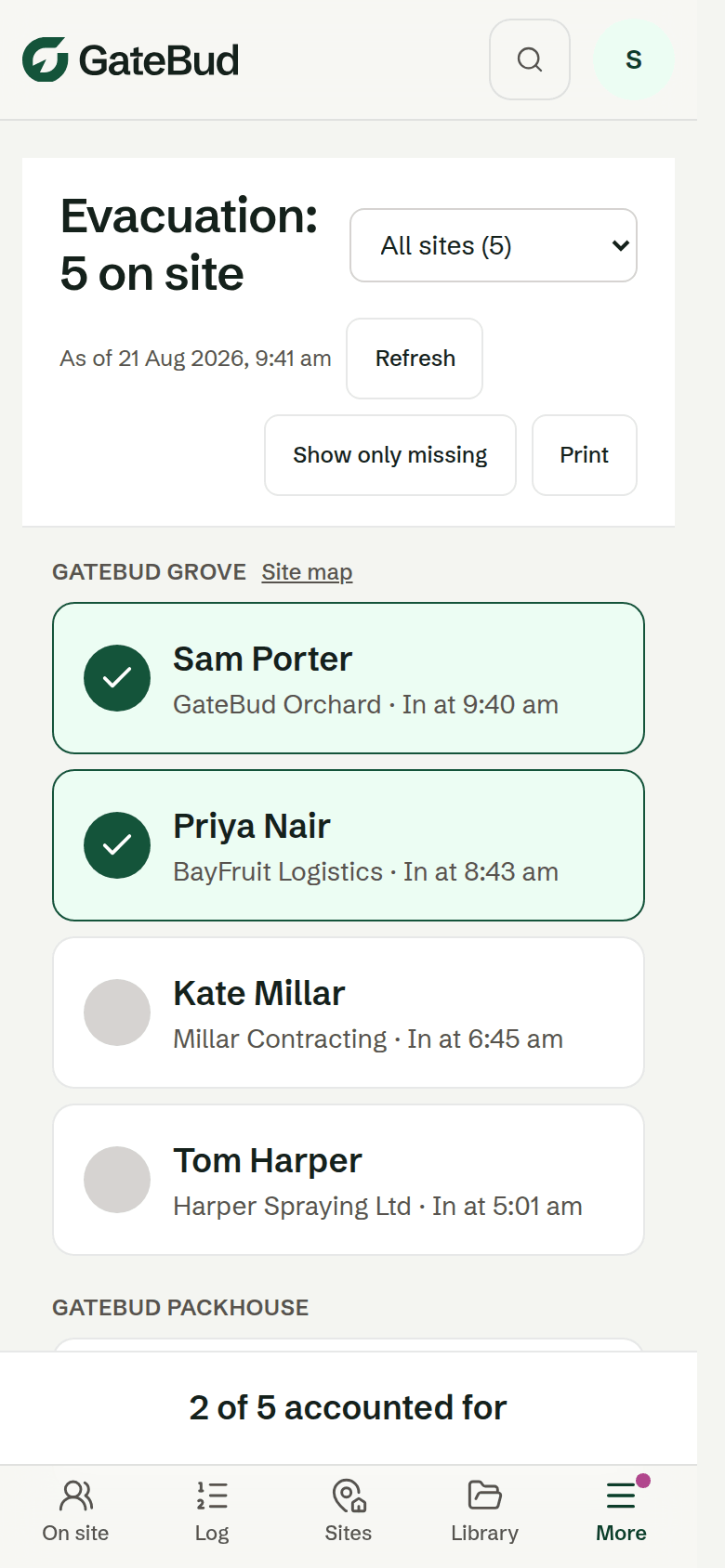
The Evacuation page is a roll call of everyone currently checked in, made for reading out loud at the assembly point. Big names, whole-row tap targets that work with gloves on, and the screen stays awake while it is open. It is GateBud™'s reason for existing: when it matters, you know who is on site.
Running a roll call
- Open Evacuation from the menu, or the Evacuation button on the Dashboard.
- Read the names out. Tap a whole row to mark that person safe, it turns green with a tick.
- The tally at the bottom keeps count, "3 of 5 accounted for", until everyone is marked.
Useful in the moment:
- Show only missing hides everyone already ticked, so the list shrinks to who you are still looking for.
- Site map, next to a site's name, opens that site's map for muster points and access.
- Filter by site if you run several and only one is evacuating.
- Print gives you a paper copy of exactly what is on screen.
- Refresh picks up anyone who checked in since you opened the page.
Ticks are your working notes on that phone for that day. They are not shared between wardens' phones and they do not check anyone out or change any record, so tick freely.
Everyone on your team can open the roll call, whatever their role. In an emergency, nobody should be locked out of the list.
Make it work before you need it
- Everyone who might run a roll call should have a GateBud login, and should open the evacuation list once on a calm day, so the first time is not during a real event.
- Remind visitors and staff to actually check out when they leave. A stale list makes a roll call slower. The automatic check-out setting on each site helps with this, see sites, questions and posters.
- Upload a site map on each site's page, so the roll call's map link has something to open.
After the event
Nothing to do in GateBud. The check-in records for the day are already saved and show who was on site and when.