GateBud
Help · Getting started
Getting started
GateBud™ lets visitors sign in at your gate by scanning a QR code with their phone. No app to install. You get a live list of who is on site, and a permanent record for health and safety.
This page covers getting in and finding your way around. Once you are in, set up GateBud, start to finish walks you through the rest in one pass.
Signing in for the first time
If someone invited you to GateBud, look for the invite email.
- Open the invite email and tap Accept invite.
- Type your name, then choose your own password. Nobody, including us, can see it.
- Tap Save and sign in. You land on the Dashboard.
You pick your own password, so there is no temporary one to look up. If the link has expired or was already used, the page offers to email you a fresh one, or you can ask whoever invited you to hit Resend invite next to your name on the People & access page.
Signing in after that
Go to gatebud.com/login and enter your email and password.
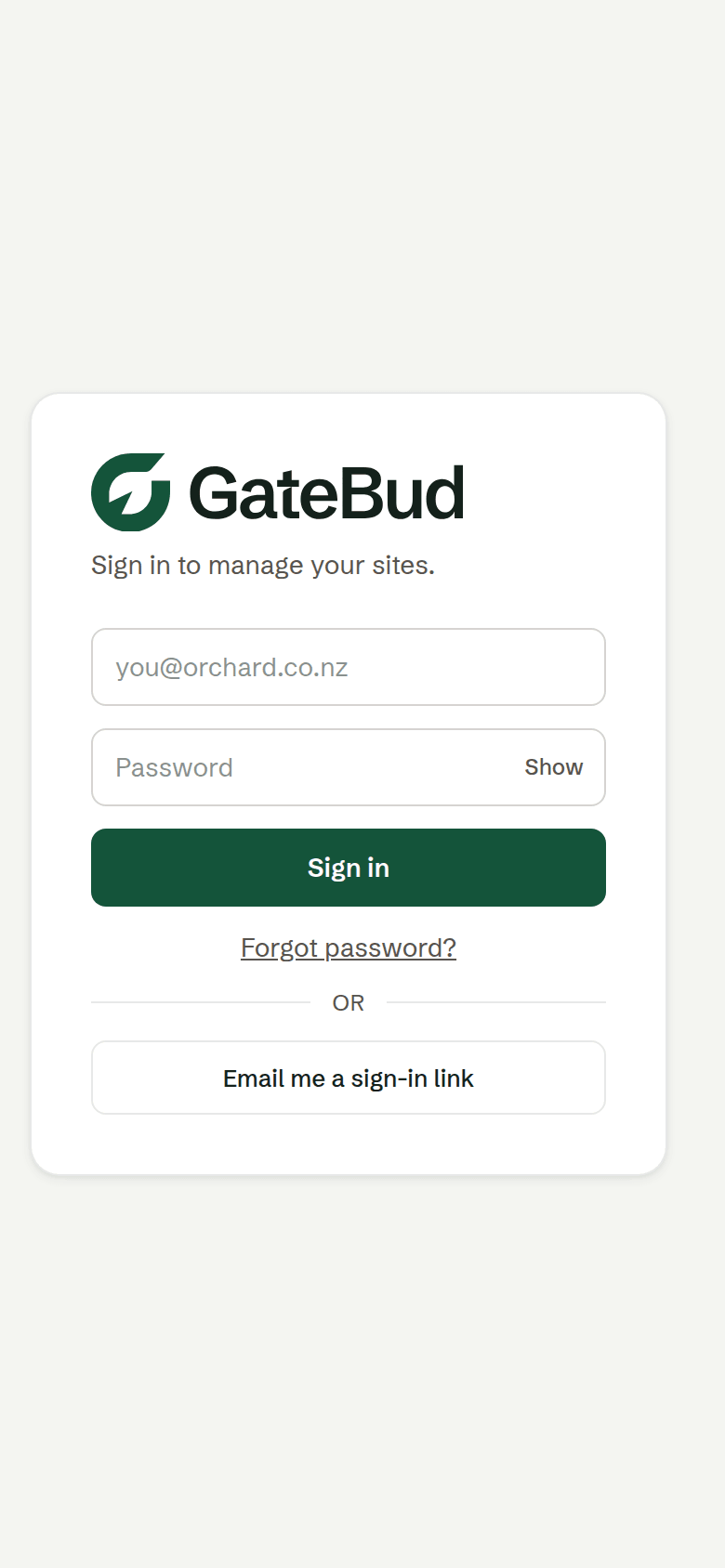
If you cannot remember your password, that page gives you two ways through:
- Email me a sign-in link. GateBud emails you a link that signs you straight in, no password needed. This is the one to use when you are standing at a gate and cannot recall it.
- Forgot password? Sets a new one permanently.
Both send you an email, so you need to be able to open your inbox on that phone.
Finding your way around
Everything lives in the menu on the left (or the bar along the bottom on a phone), grouped by how you use it:
- Run the gate: On site now (the live Dashboard), Visitor log (every past check-in), and Evacuation (the roll call).
- Set up: Sites & check-in, and the Document library.
- Manage: People & access, and Settings.
Help & guides and What's new sit at the bottom. A magenta dot on What's new means something has changed since you last looked.
Your own initial sits in the top right corner. That menu holds Light, Dark and System for how GateBud looks, remembered on that device only, so your phone and the office desktop can differ. It's also where you manage your account and sign out.
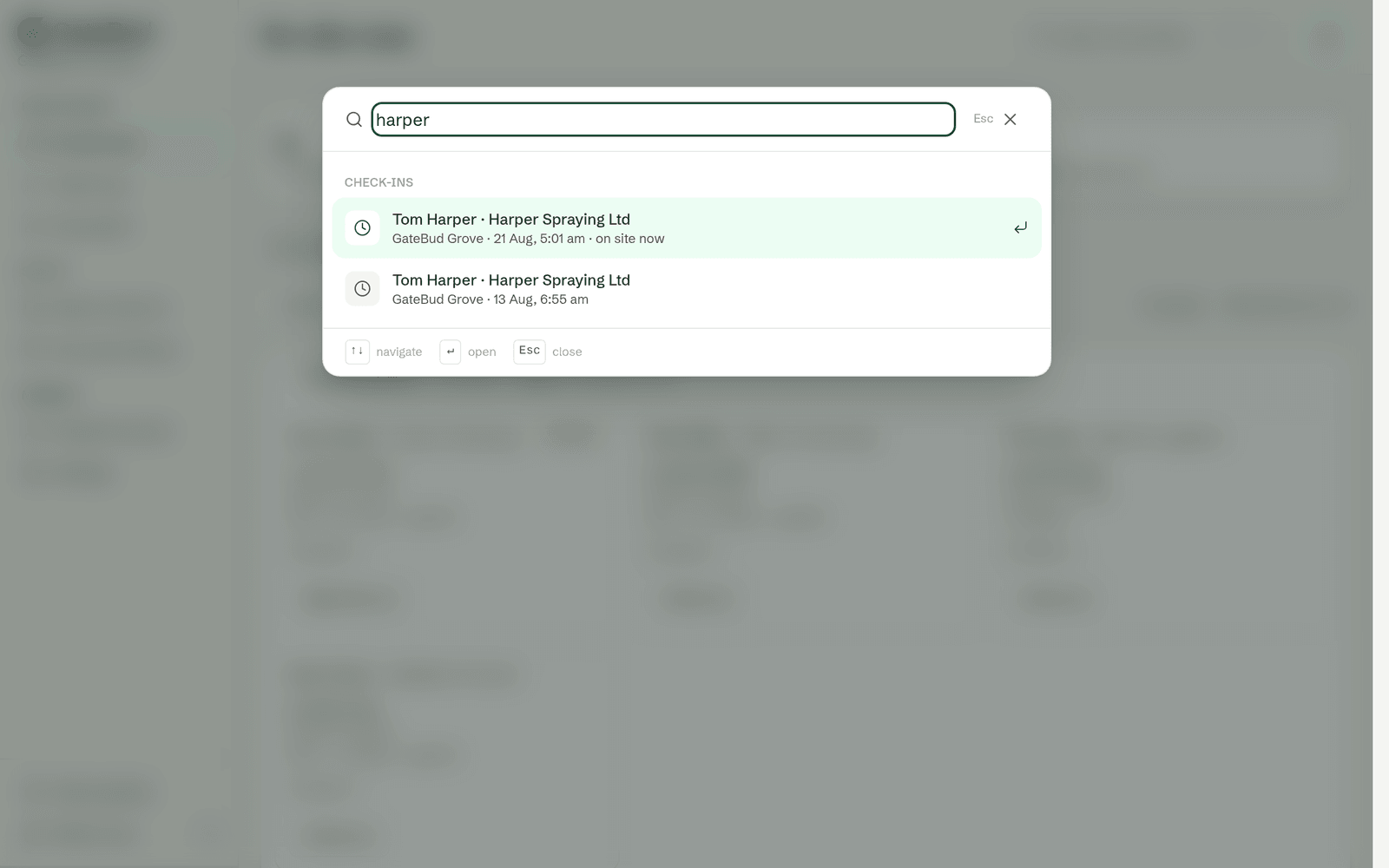
There is also a search box at the top of every page (Ctrl K, or Cmd K on a Mac, or just /). Type a visitor's name, a company, a document title, or a site, even an extra detail like a KPIN, and it finds it.
What you will see first
You land on the Dashboard. It shows who is on site right now, so it is empty until your first check-in. That is normal.
New accounts also get a Getting set up checklist on the Dashboard. It ticks itself off as you go, and disappears for good once your first check-in lands.
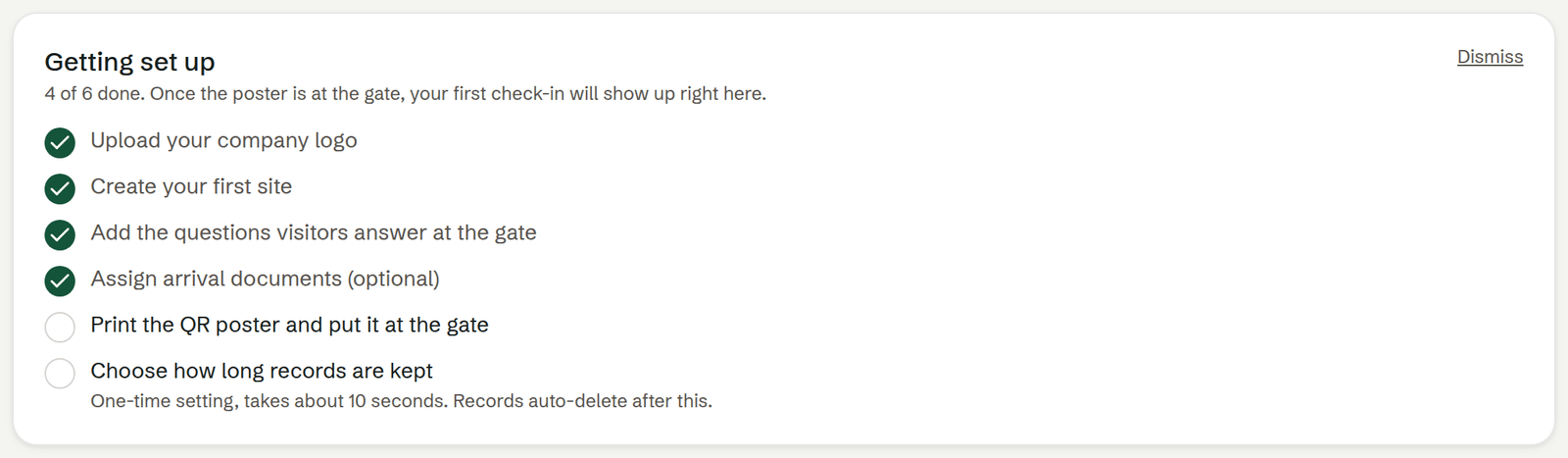
Work through it in order, or follow the full walkthrough, which covers the same ground plus the parts the checklist leaves out.
Your own account
Settings, then Your account, is where you change your own email, your password and how you sign in. This is your login only, it changes nothing for anyone else on your team.
The other two cards on that page, Branding and Data retention, are account-wide and only an admin sees them.
Need a hand?
Email us at support@gatebud.com. Include the site name and a photo or screenshot if you can.