GateBud
Help · The Visitor log, exports and privacy
The Visitor log, exports and privacy
The Visitor log is the full record of every check-in, at every site, going back to day one. It is where you go for an audit, a correction, or a request to remove someone's details. In GateBud™ these records are your health and safety evidence, so they are built to be trusted.
Finding things
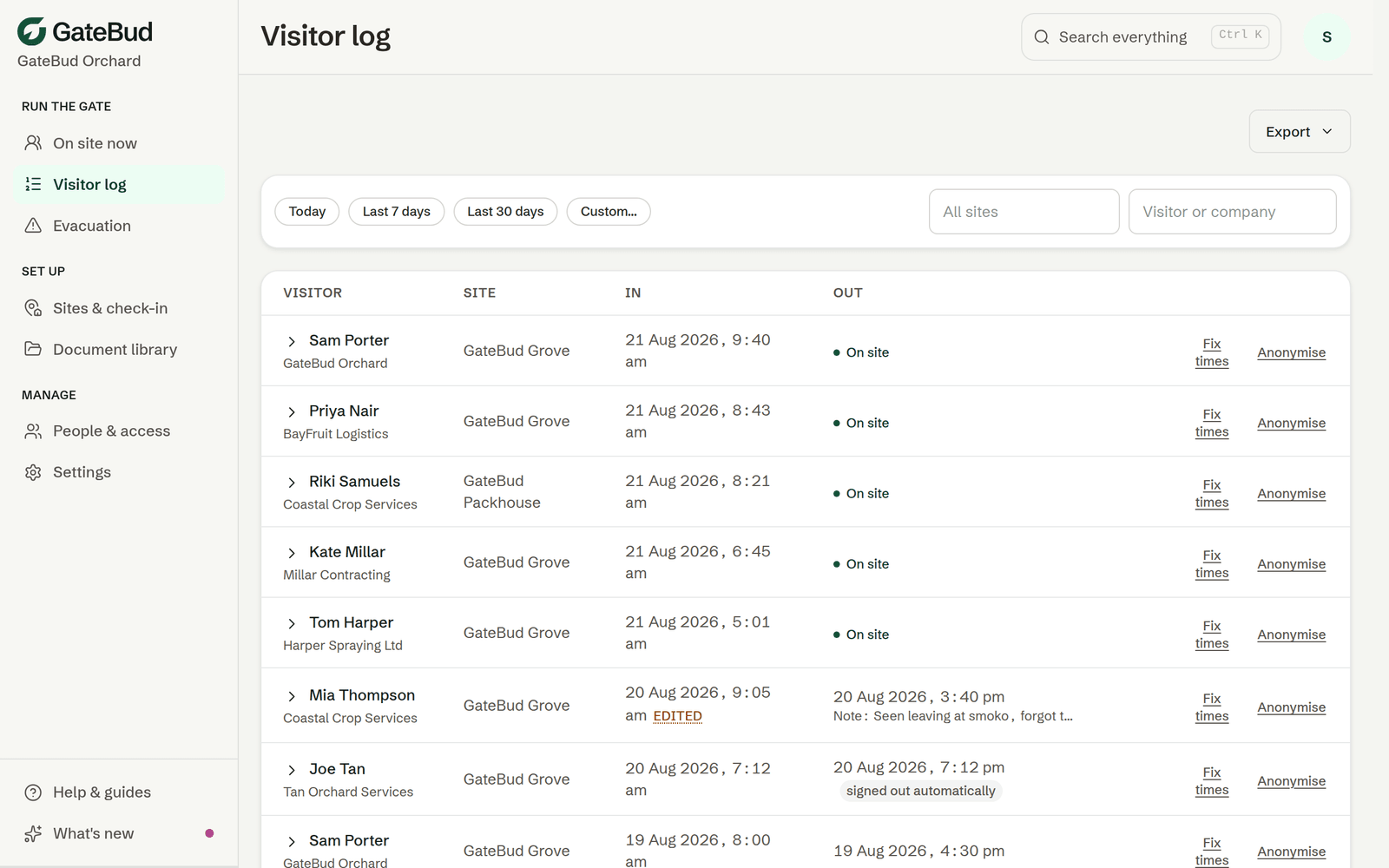
- Use the quick date chips, Today, Last 7 days, Last 30 days, or Custom for an exact range.
- Filter by site: start typing a site's name, or one of your own site identifiers such as a KPIN, and pick it from the list.
- Search by a visitor's name or company.
- The log shows 100 visits per page, Newer and Older move between pages, and the line between them tells you the date range you are looking at.
- On a phone each visit is a card rather than a wide table. Tap Record and actions to open the full record.
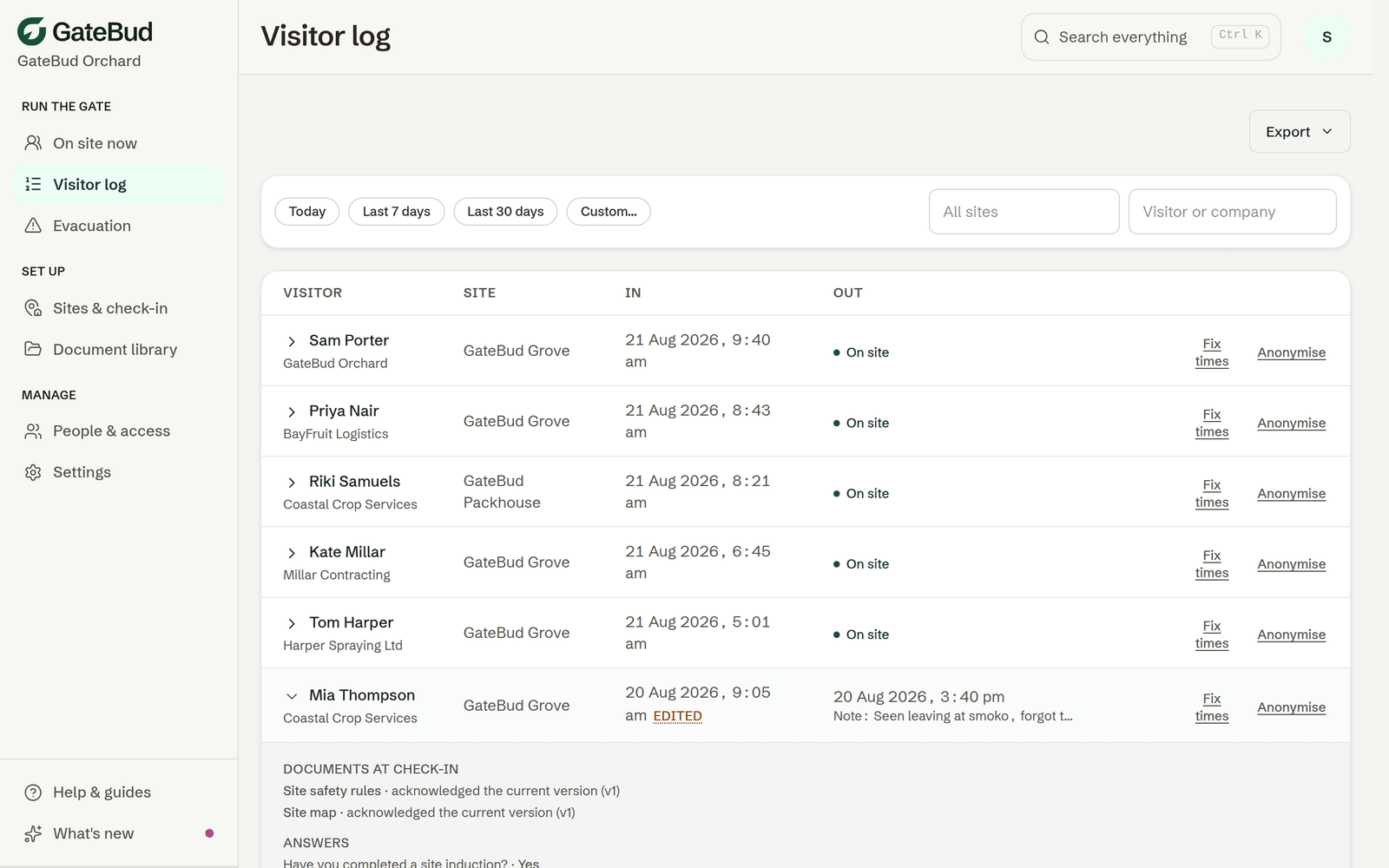
Open any row to see the whole record: the answers given, which documents were acknowledged and which version was read, any sign-out note, and the full history of any time corrections.
Exporting records
Auditors and clients sometimes ask for visitor records. The Export button gives you two files:
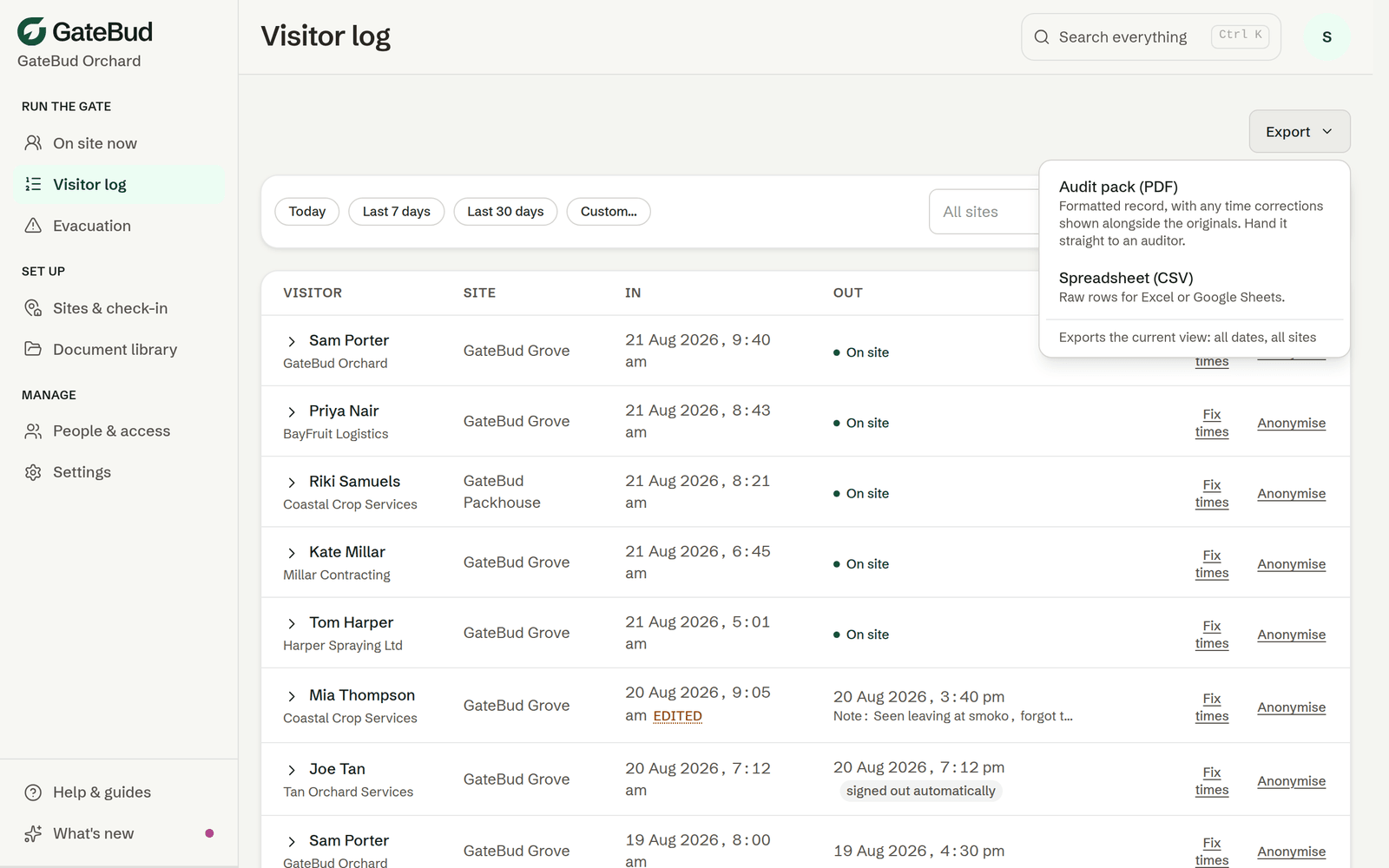
- Audit pack (PDF). A formatted report, with any corrected times shown alongside the originals. Hand it straight to an auditor.
- Spreadsheet (CSV). Raw rows for Excel or Google Sheets.
Both export exactly the view you have filtered, and the menu spells out that scope before you download, so filter first, then export.
Exporting needs a Manager or Admin role. A View only member can read the log but will not see the Export button. See people, roles and access.
If your organisation has added custom site fields, such as KPIN, they are included automatically. A site with no value shows a blank. GateBud never substitutes another site's value.
The spreadsheet has no practical size cap. The PDF report can hold up to 5,000 records, and if your filters match more than that, the warning is printed inside the report itself, so the file can never look complete when it is not.
Records cannot be edited, on purpose
Check-in records are deliberately permanent. Nobody in your organisation, including you, can quietly edit or delete one. That is what makes them trustworthy as compliance evidence.
There are three exceptions: the note a staff member can add when signing someone out (written once, never edited afterwards), and the two below.
Correcting a wrong time
If a check-in or check-out time is genuinely wrong, tap Fix times on the record. Change the time and give a reason, the reason is required.
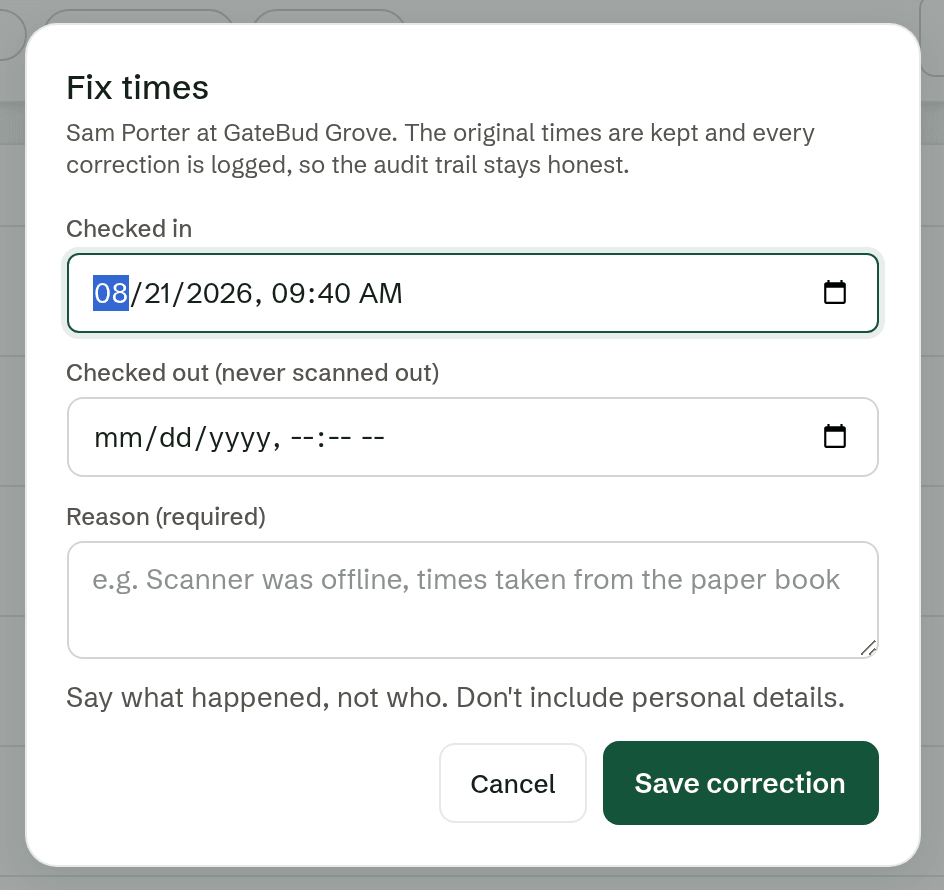
The original time is kept alongside the corrected one, with who corrected it and why. The row is marked as edited from then on, and anyone can open it to see the full history. Nothing is overwritten and nothing is hidden. Only times can be corrected, never names, answers or documents.
This is the honest way to fix a mistake. An auditor seeing a corrected time with a reason attached trusts your records more, not less.
Anonymising: handling a privacy request
If someone asks you to remove their details, you do not delete the record. You anonymise it.
Their name, company, written answers and any sign-out note are removed. The record itself stays, so your check-in history and your health and safety evidence are intact. It cannot be undone.
Anonymising is an admin job. If you cannot see the buttons below, your role is not Admin, so pass the request to whoever runs your account. See people, roles and access.
There are two ways to do it:
- One person. Find their row in the Visitor log and tap Anonymise. This is the answer to "please remove my details".
- Everything older than a date. Use Anonymise old records at the bottom of the log. It strips identity from every record older than the date you pick, across every site you can manage, whatever filters you have set on screen. It will not accept a date less than seven days ago, so you cannot wipe this week by mistake.
The bulk option is irreversible and covers an unknown number of records, so it asks you to type the word "anonymise" to confirm. Treat it as a once-a-year tool at most. The automatic clean-up below is what you should rely on day to day.
Automatic clean-up of old names
This is already switched on. New accounts start at 24 months.
Go to People & access, then the Settings tab, and an admin can see and change it. Check-in records older than the window you choose are anonymised automatically each night: names, companies, written answers and any sign-out notes are removed, and the record itself stays as your evidence.
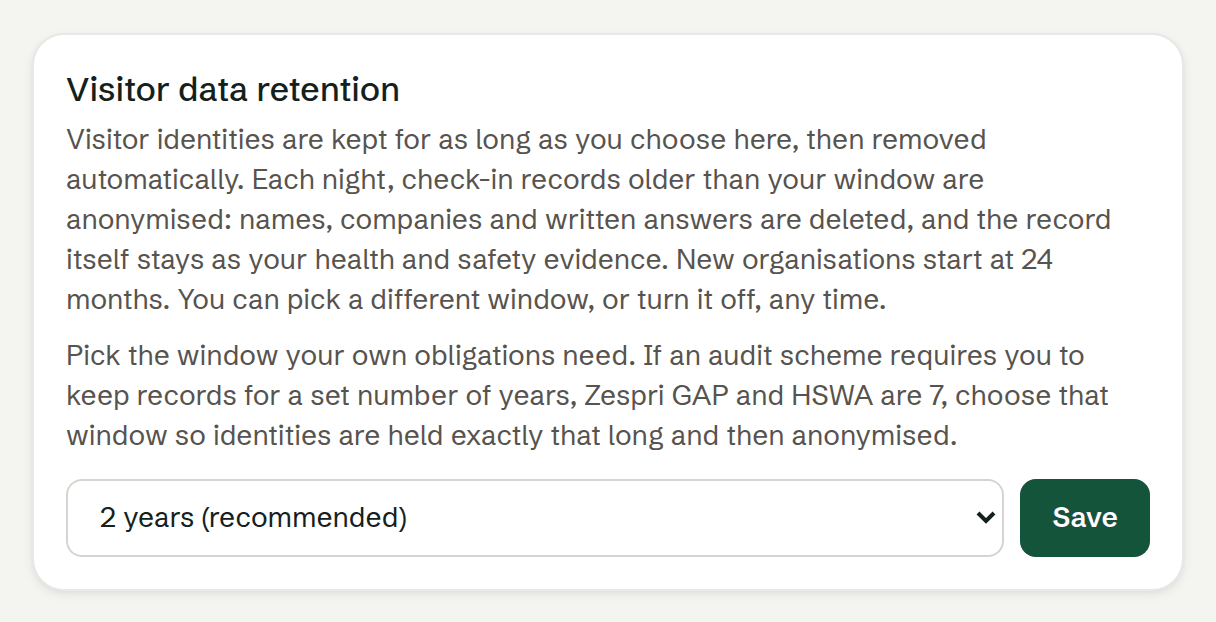
Your choices are:
- 6 months, 1 year, or 2 years (recommended). New accounts start at 2 years.
- 7 years, if an audit scheme that asks for 7 years applies to you, for example Zespri GAP.
- Keep identities forever. Turns the automatic clean-up off.
Whichever you pick, identities are held exactly that long and then removed automatically. Pick the window your own obligations need; we cannot judge that for you. Only an admin can see or change this setting.
Decide it early. Changing it later is fine, but anonymising is permanent, so shortening the window will strip names you might have wanted to keep.