GateBud
Help · People, roles and access
People, roles and access
People & access is where you control who can log in to GateBud™ and what they can see and do. This is about your staff. Visitors at the gate never need an account.
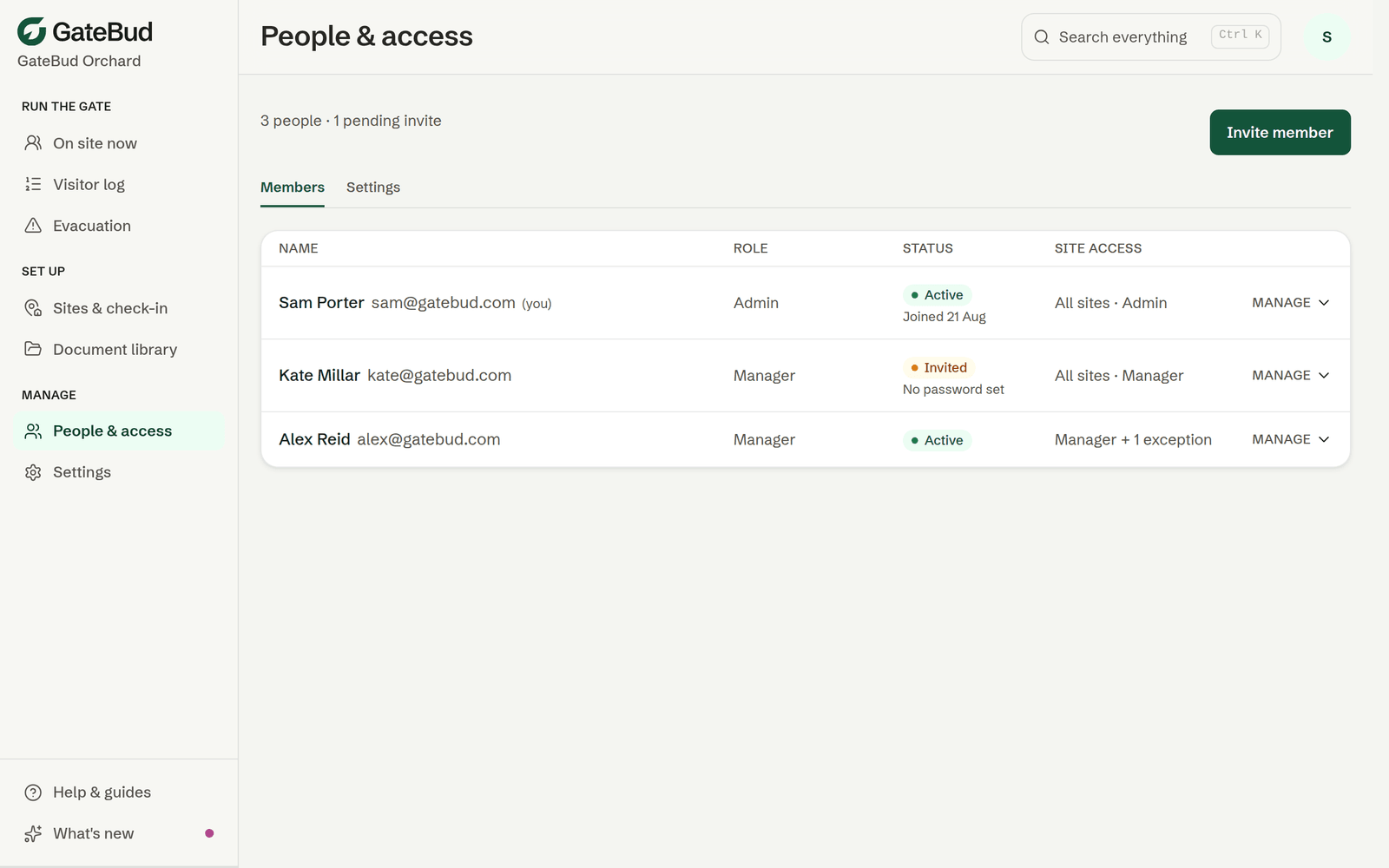
Each row shows the person's role, whether they are Active or still Invited (they have not set a password yet), and their site access. Tap a row to open it: rename them, change their role, add site exceptions, resend an invite, or remove them.
Inviting someone
- Tap Invite member.
- Enter their name and email and pick a role.
- They get an email with a link, and they choose their own password. You never set a password for someone else.
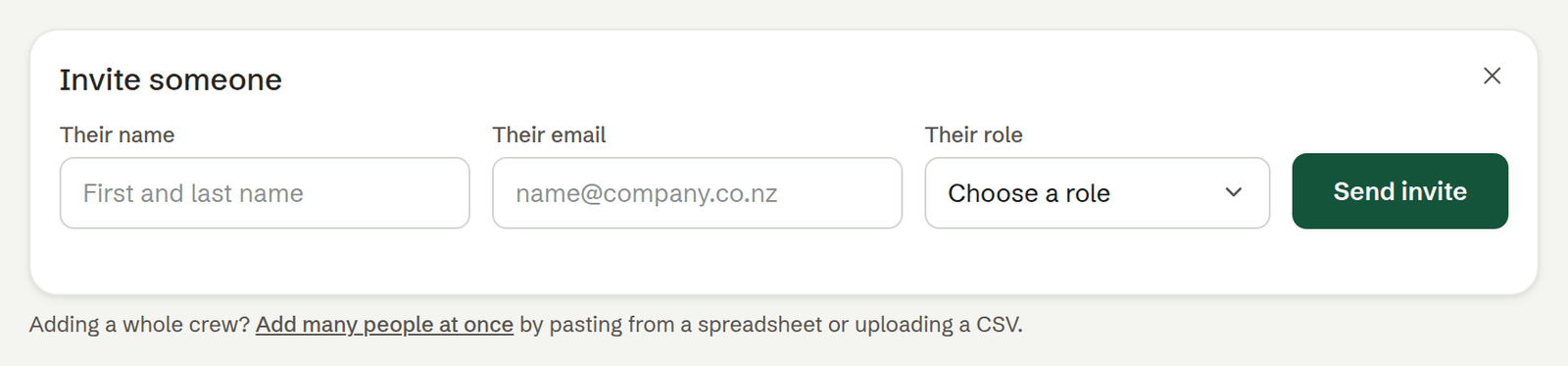
Until they have signed in properly their row shows as Invited, and you can resend the invite from their row. If someone says the link has expired, the expired page also lets them email themselves a fresh one.
Roles, in plain terms
A role is what someone can do once they log in. You pick one when you invite them, and you can change it any time from their row.
GateBud comes with four ready-made roles:
- Admin. Does everything. An Admin runs the whole account: every site, every record, the team, the retention setting and company settings. There is nothing an Admin cannot reach.
- Manager. Runs sites and records day to day. A Manager can set up sites, see and export records, sign visitors out and correct times. A Manager cannot manage the team or change privacy and retention. Those two stay with an Admin.
- View only. Can see the Dashboard and the Visitor log, and nothing else. Good for someone who needs to look but not touch.
- No access. Can do nothing. This one is only ever used as a per-site exception (see below), never as someone's main role.
Roles are deliberately coarse: a role switches a whole capability on or off, not individual buttons. The one thing every role shares: anyone can open the evacuation roll call, because in an emergency nobody should be locked out of the list.
Access per site
Most people have one role that applies everywhere. You can also give someone a different role at a single site, as an exception on their row. This is how you match access to who actually runs each gate.
A common example: someone is a Manager at the gate they run, and No access everywhere else. Or the other way around, a Manager across all your sites with No access at one sensitive site.
How to set one up:
- Set the person's main role first. This is their default across every site.
- Open their row, and under Site exceptions type the site's name, pick it, then pick the role that applies just there.
A few things worth knowing:
- A per-site exception replaces the person's usual role at that one site. It does not add to it.
- No access at a site means they cannot see or do anything there. The site does not even show up for them.
- Account-wide things, like managing the team and the retention setting, always follow a person's main role, never a per-site exception.
- Admin is account-wide only. You cannot make someone an Admin at just one site, and an Admin already sees everything everywhere. That is why Admin never appears in the per-site list, and No access never appears in the main-role list.
Adding many people at once
If you have a long list, tap Add many people at once under the invite form. Paste straight from Excel or Google Sheets, or upload a CSV. The columns are email (required), role, name and sites, up to 200 rows at a time, and a template is there to download.
Nothing is sent until you have seen a preview of exactly what will happen: who will be invited, whose role will change, and any rows that need fixing, which you can correct right there.
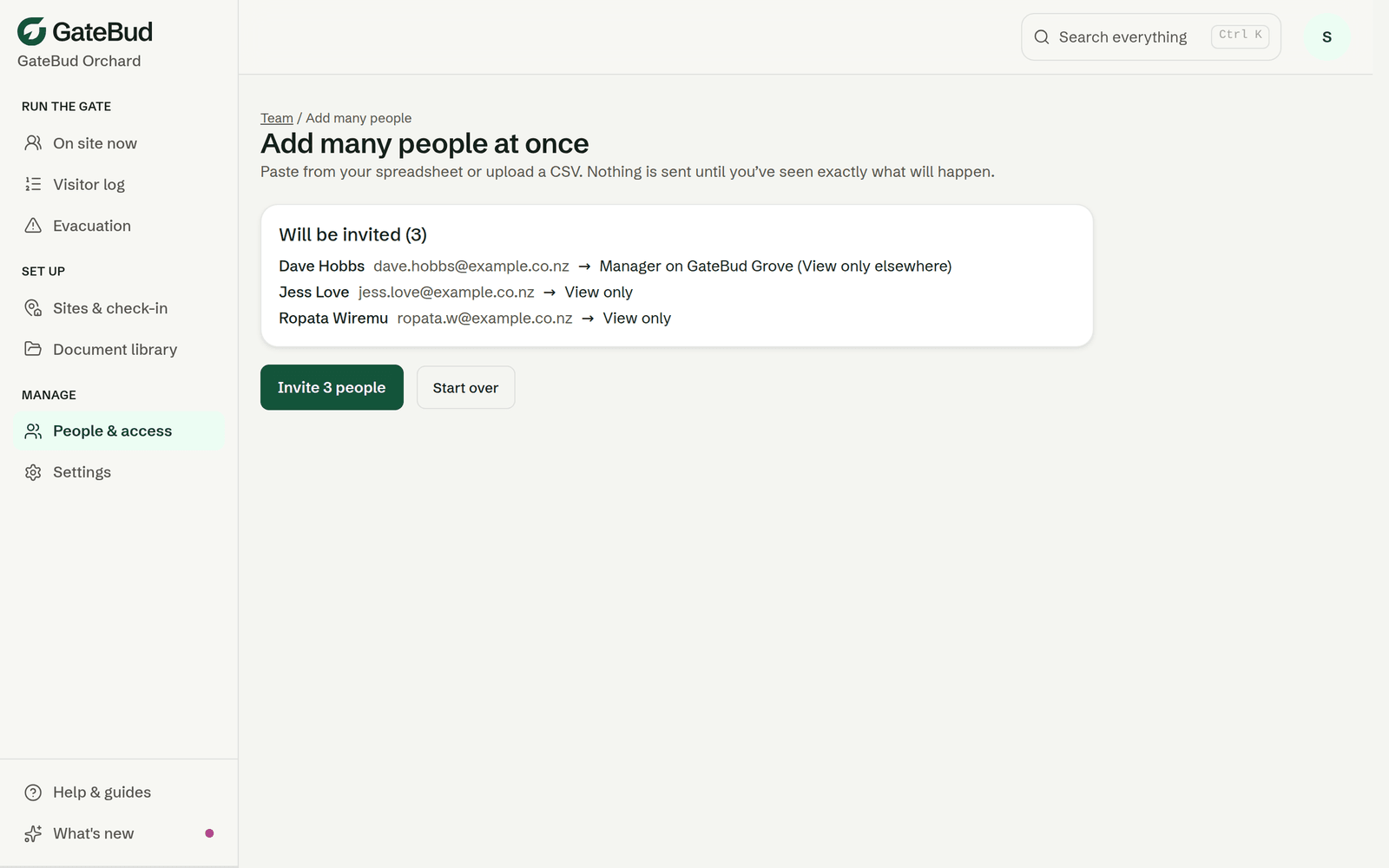
A blank role means View only for a new person, and no change for someone already on the team, so a re-import can never quietly demote anyone.
Retention settings
The Settings tab on this page is where an admin sets how long visitor names are kept for the whole account. This is one setting for your whole organisation, not per site. See the Visitor log, exports and privacy.
Removing someone
When someone leaves, open their row and tap Remove from team. They lose access immediately: any open GateBud tab they have signs itself out within moments, with a note that their access changed. The check-in records they handled stay untouched, and you can invite them again later.
Two safety rails: you cannot remove yourself, and the account's last admin can never be removed or demoted, so an account can never lock itself out.