GateBud
Help · The Dashboard: who is on site now
The Dashboard: who is on site now
The Dashboard, On site now in the menu, is your live view of everyone who has checked in and not yet checked out, across all your sites. It is the screen GateBud™ opens on, and the one you will actually live in.
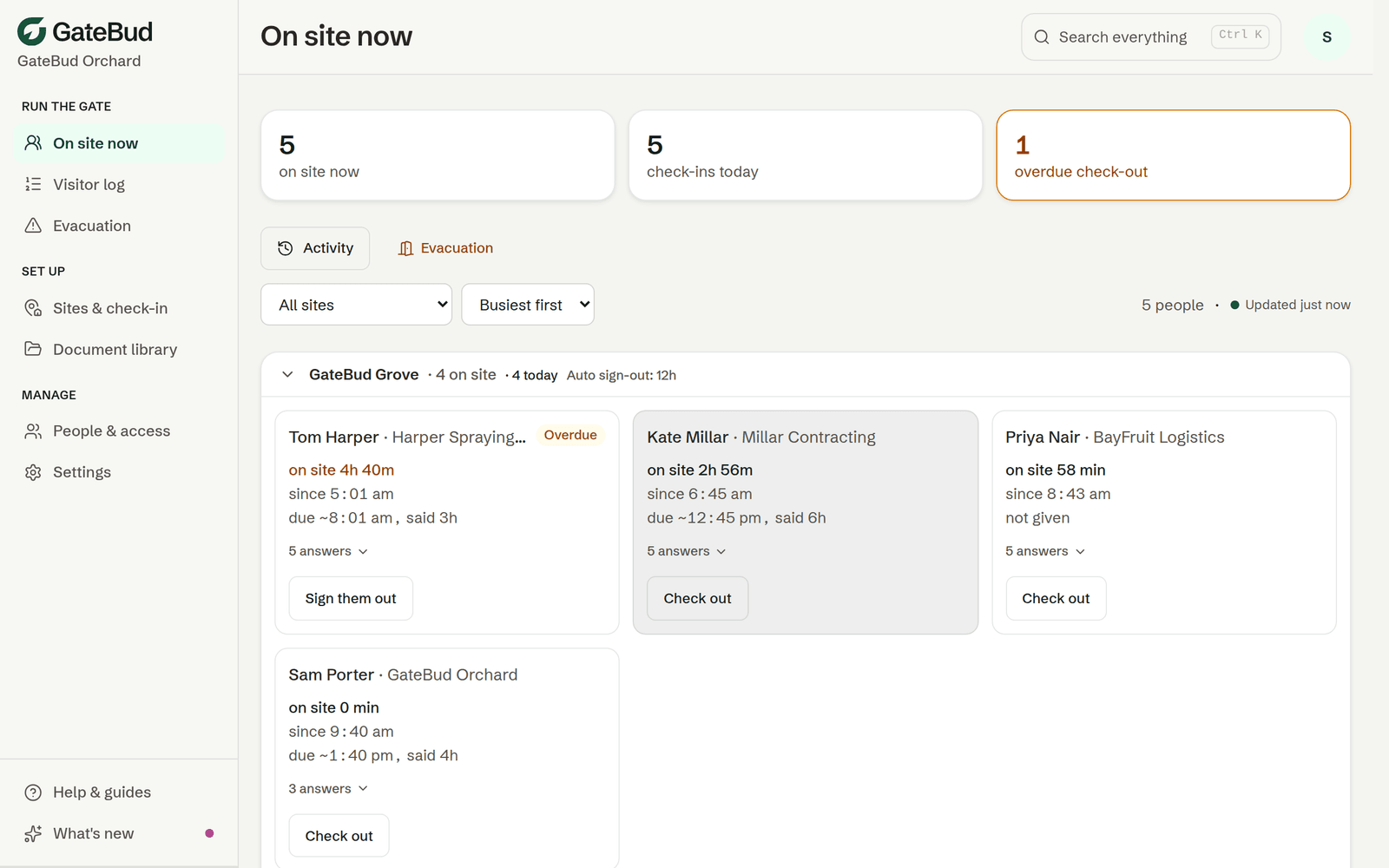
What you will see
- Three numbers across the top. How many people are on site now, how many check-ins so far today, and how many overdue check-outs. The overdue tile turns amber when it is not zero, tap it to see just those people.
- A card per site. Each site's card shows how many are on it, today's count, and its auto sign-out rule. Inside, one card per person: their name and company as they typed it at the gate, when they arrived, how long they have been on site, and when they are due out if they gave an expected time. Longest stay first, so whoever has been there all day is at the top.
- Filter and sort. If you run several sites you can narrow the view to one, and sort sites busiest first or A to Z.
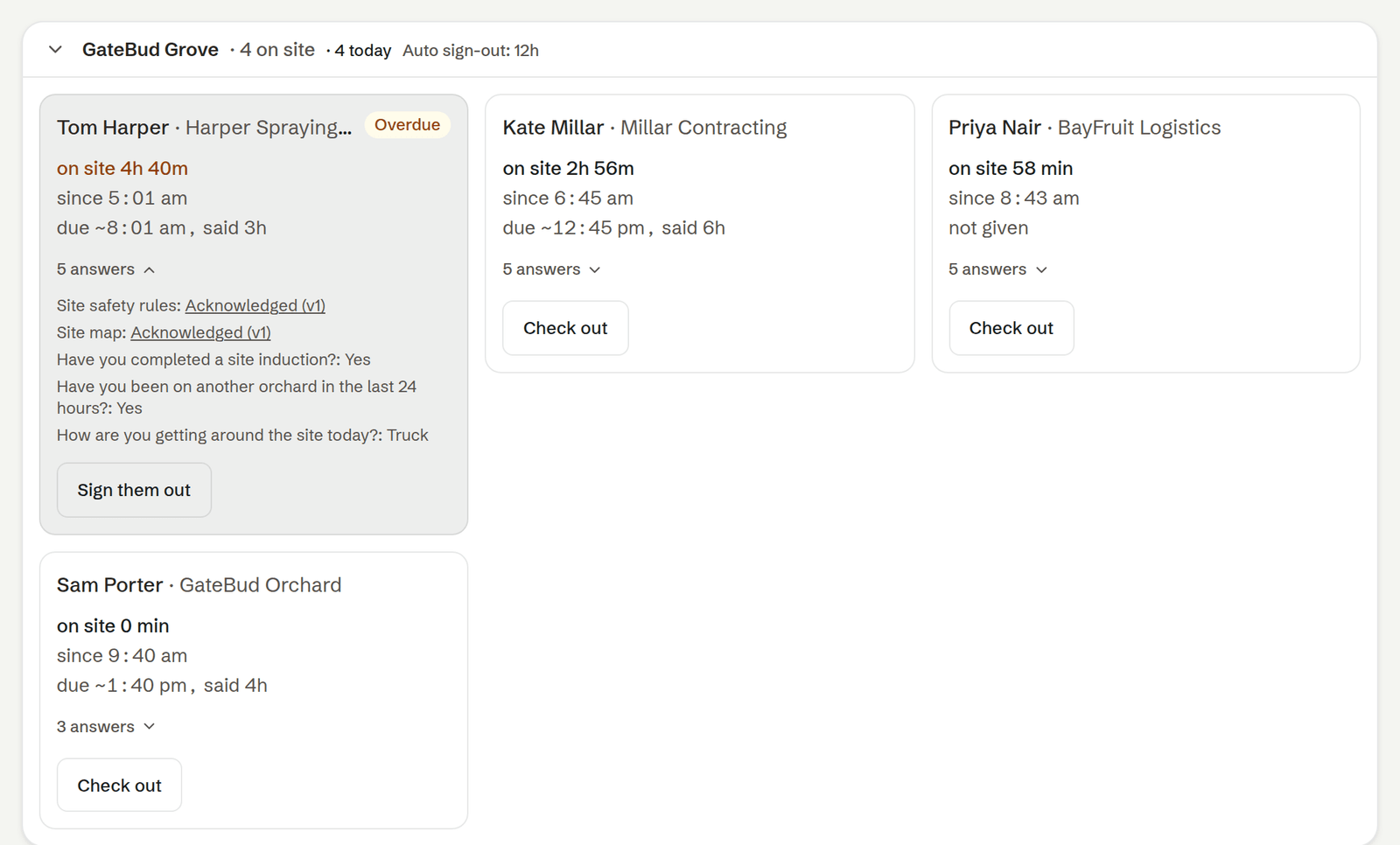
Tap answers on any person to see what they answered and which documents they acknowledged, down to the exact version.
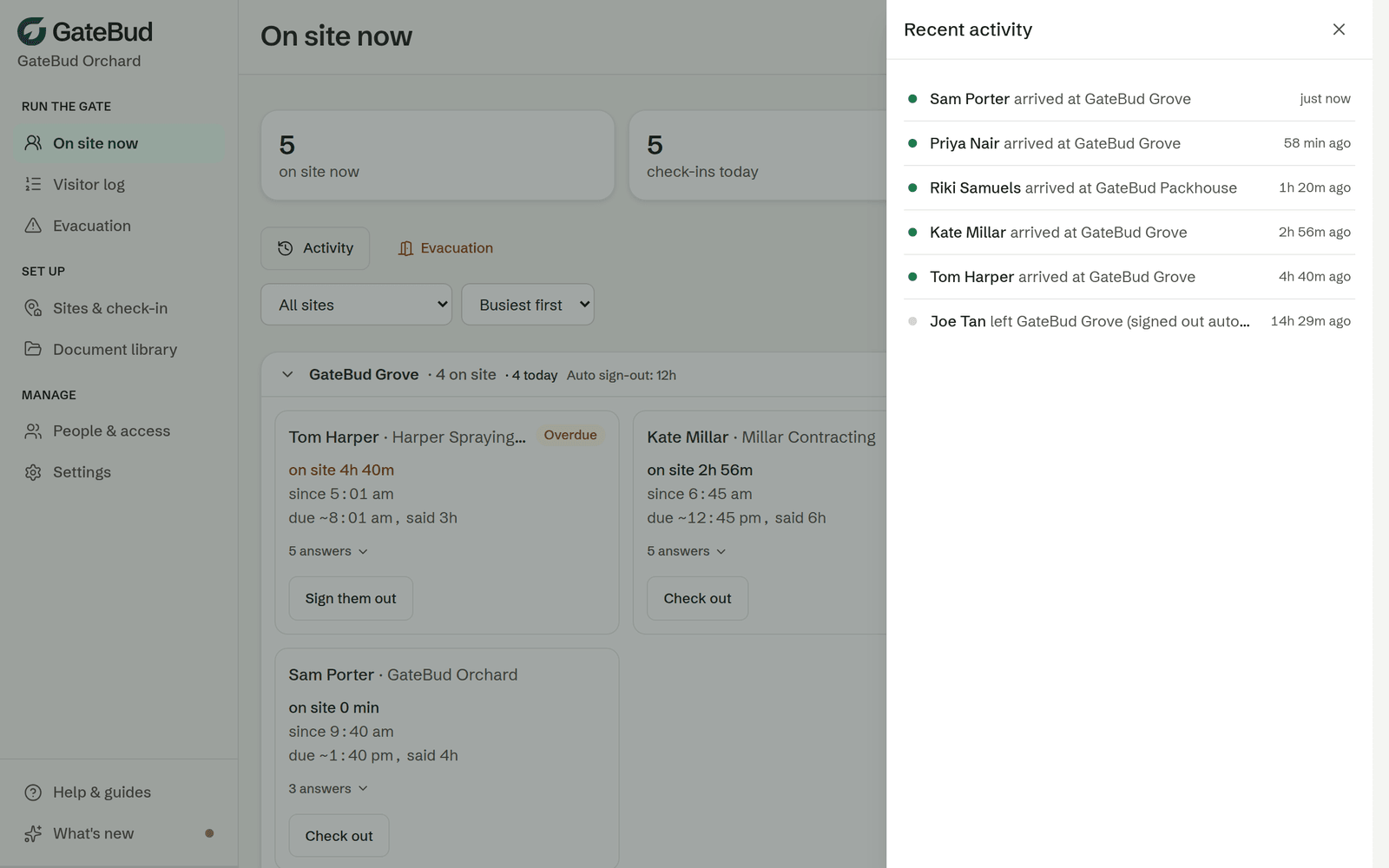
Recent activity
The Activity button opens a side panel of the latest arrivals and departures, including anyone signed out automatically. Handy for a quick "who came and went while I was out".
Overdue check-outs
Someone shows as Overdue when they look stuck on the list rather than still working.
If they gave an expected time at check-in, they are flagged once they pass it, and the card shows what they said, for example "said 3h". If they did not give a time, anyone on site more than 10 hours is flagged. Either way it usually means they forgot to check out.
Signing someone out
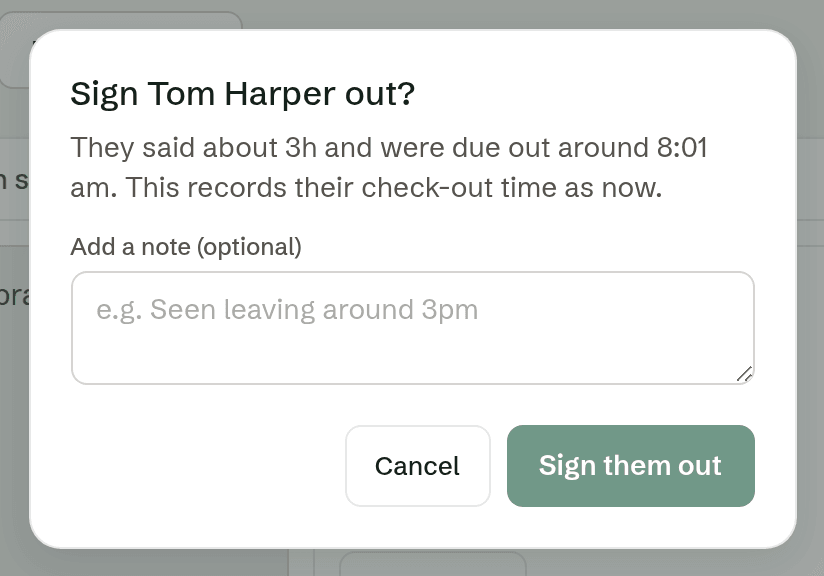
If a visitor left without checking out, find them in the list and use the Check out button on their card. On an overdue person the button reads Sign them out and asks you to confirm, with room for a short note, for example "Seen leaving around 3pm". The note stays on the record.
To stop overnight stragglers altogether, set an automatic check-out on the site. See sites, questions and posters.
In an emergency
The Evacuation button at the top of the Dashboard opens the roll call, pre-filtered to whatever site you are looking at. That list has its own page and its own guide: evacuation and the roll call.
Good to know
- The Dashboard refreshes itself every minute or two while it is open. "Updated just now" in the corner tells you it is current.
- Your site filter is remembered on this device. If the Dashboard ever looks strangely quiet, check it is not filtered to one site, the "Show all sites" button puts it right.
- Whether someone can sign visitors out depends on their role at that site. See people, roles and access.